公演当日、ライブ会場付近でしか引くことができないone room会員限定の「くじ引き」です。
各公演、gold key(年額)は2回、silver key(月額)は1回ご参加いただけます。
結果ページで表示された賞品を、当日その場でプレゼント!!
開催時間/引き換え時間
開催時間:各公演日9:00〜開演まで
引き換え時間:各公演日10:00〜開演30分後まで
- くじは、各会場より半径約10km圏内のGPS範囲内にて、【くじへの参加はこちら】よりご参加いただけます。
- 公演当日は混雑により、会場周辺の電波が不安定になる可能性がございます。
会場付近、および各会場の主要駅やシャトルバス乗り場からもご参加いただけますので、くじはご来場前に実施いただきますよう、ご協力をお願いいたします。
賞品
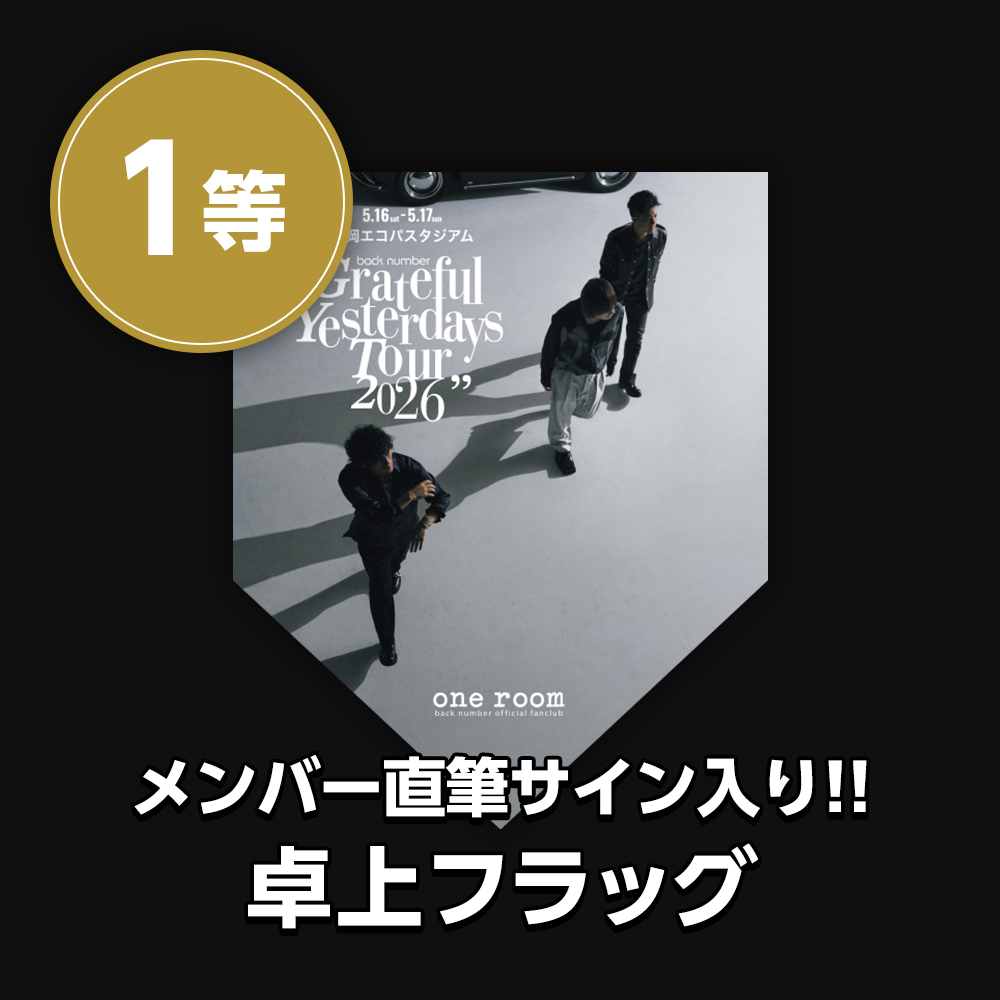
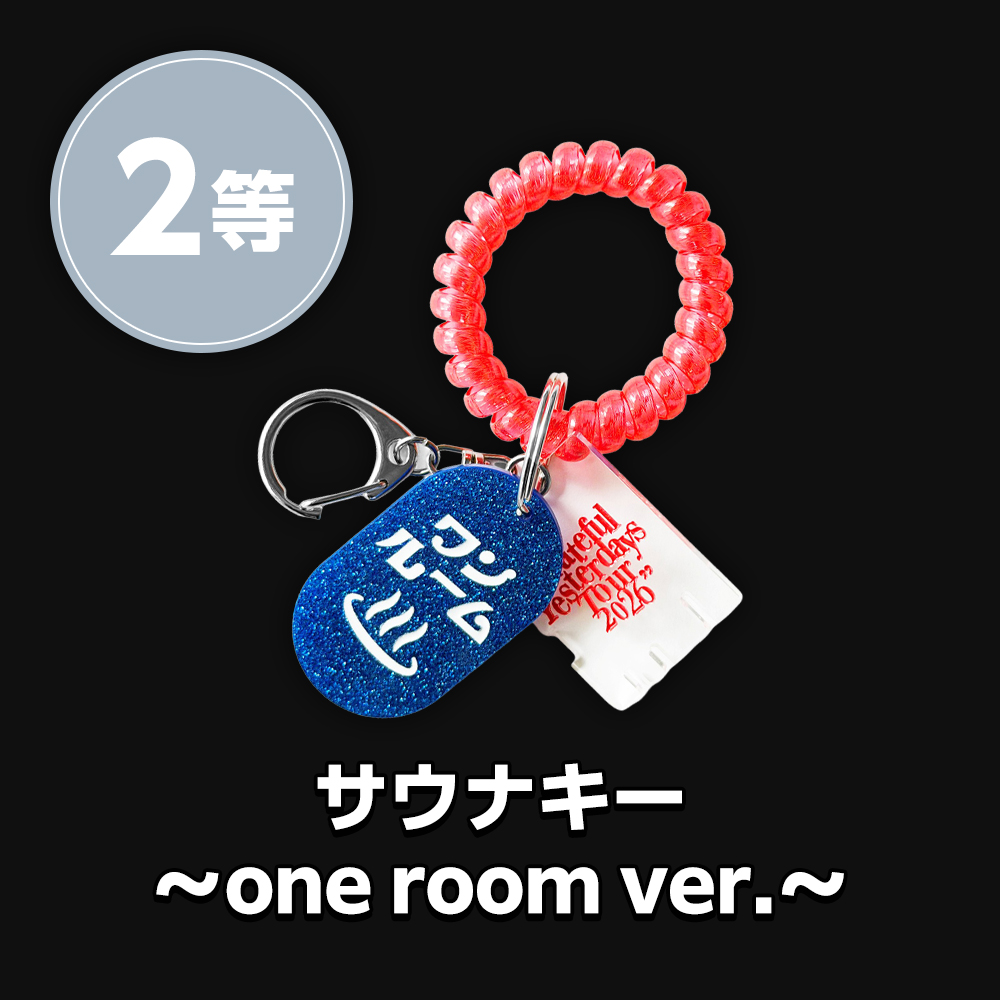
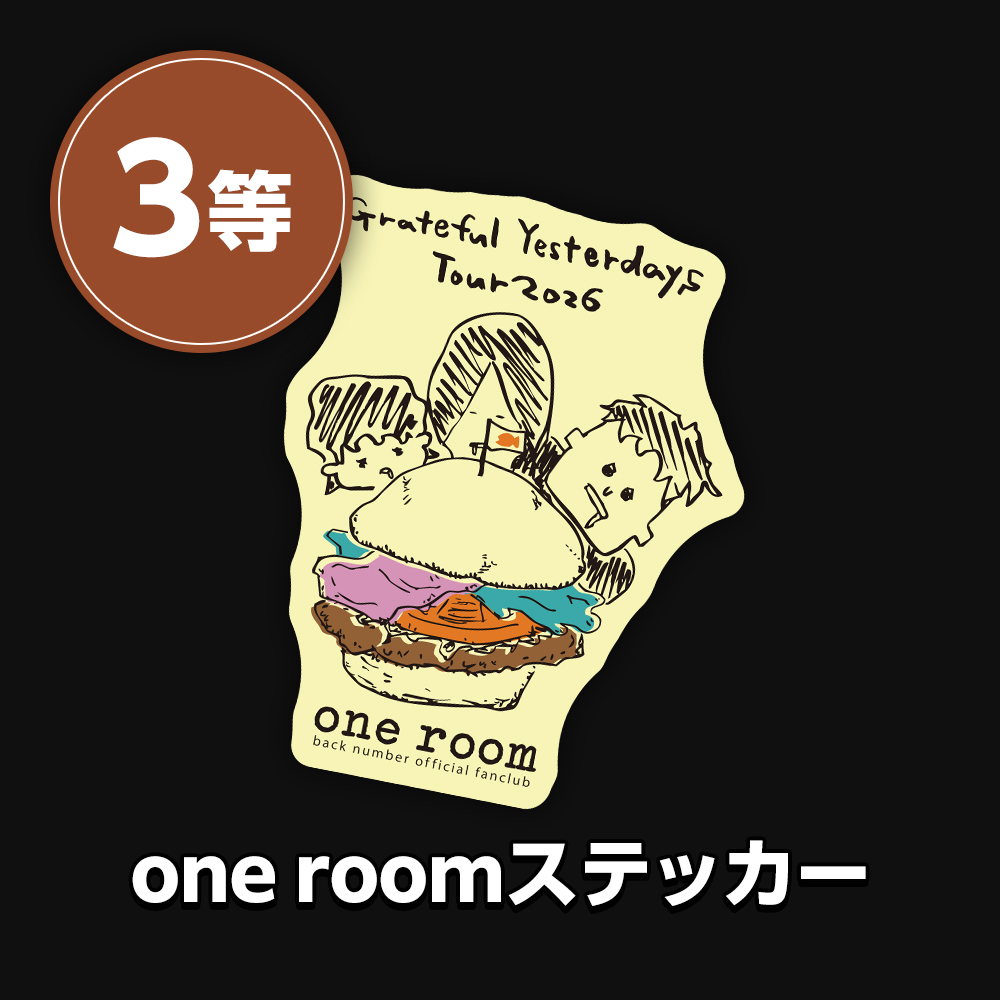
参加方法
- 1.開催時間内に上記【くじへの参加はこちら】ボタンをタップし、one roomくじにご参加ください。
※利用端末のGPS機能がオンになっているかをご確認ください。 - 2.GPSチェックイン成功後、「くじを引く」ボタンが表示されますので、該当ボタンをタップしてください。くじの結果画面が表示されます。
くじを引ける回数(各公演)
- gold key(年額):2回
- silver key(月額):1回
- ※公演当日に新規入会いただいても参加可能です。
賞品引き換え場所(1等〜3等)
- ファンクラブブース
- ※各会場の詳細は、会場MAPをご確認ください。
注意事項
- 賞品の引き換えは当選当日各会場へお越しいただいた方のみとさせていただきます。
- 賞品は当選者ご本人様のみの引き換えに限らせて頂きます。代理での賞品引き換えは出来ません。
- 4等の「スタンプ風画像(全9種ランダム)」は当日中に保存してください。
- 公演当日は大変な混雑が予想されるため、会場の電波が不安定になる可能性があります。くじはご来場前に、実施していただきますようご協力のほどよろしくお願いいたします。
- 当選された賞品の転売、第三者への譲渡は禁止となります。
- 推奨しているブラウザ(Safari・Chrome)をご利用ください。
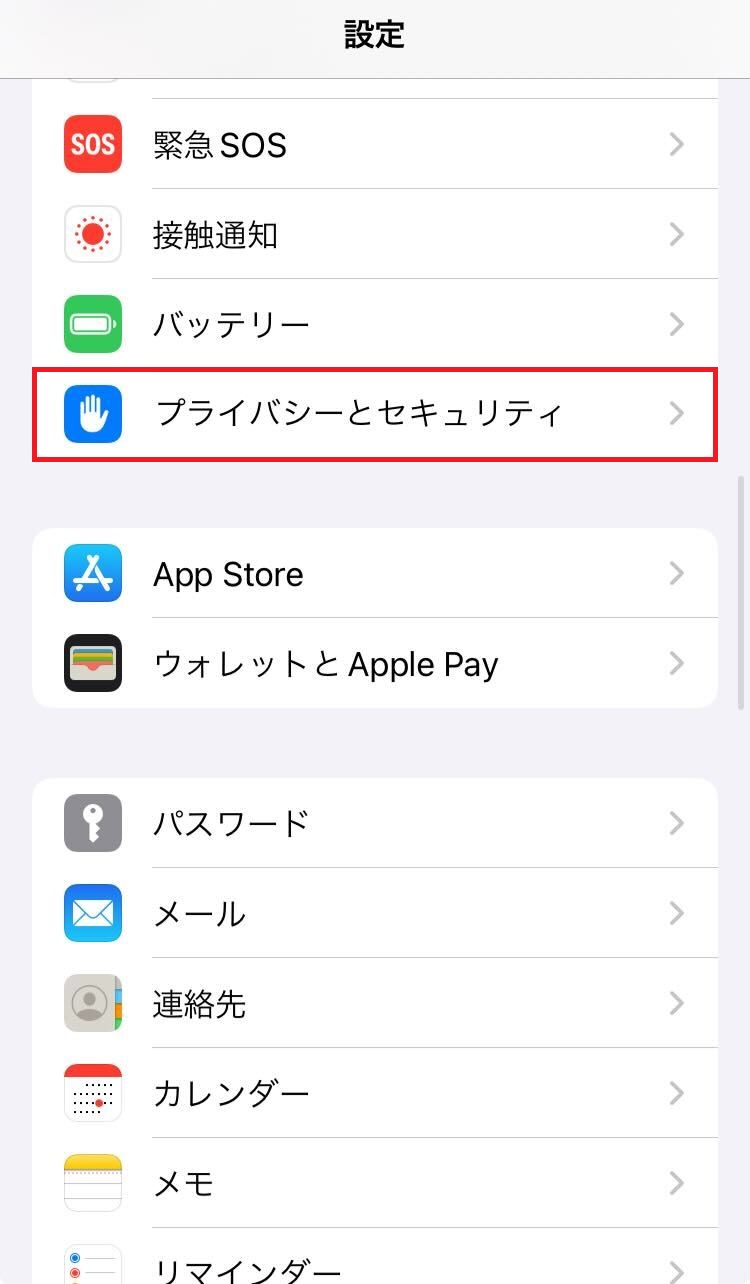
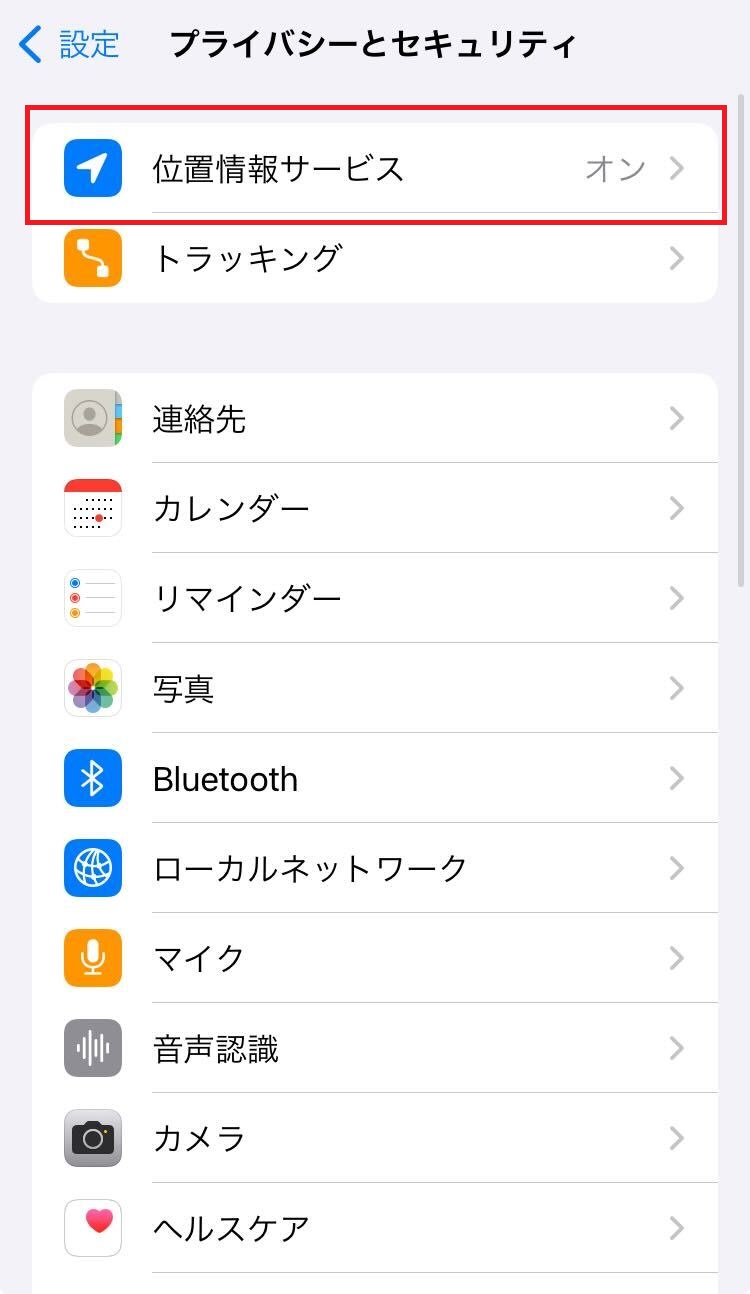
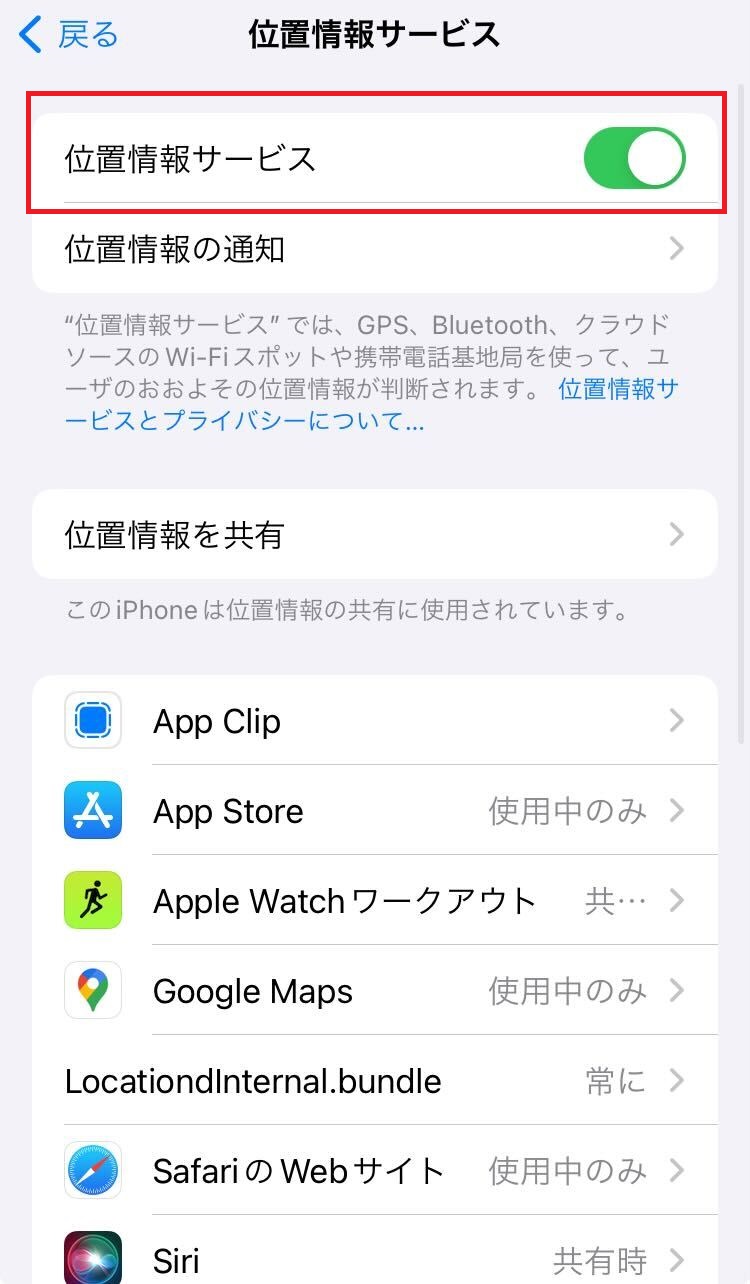
- スマートフォンの位置情報サービスをオンにしてご参加ください。
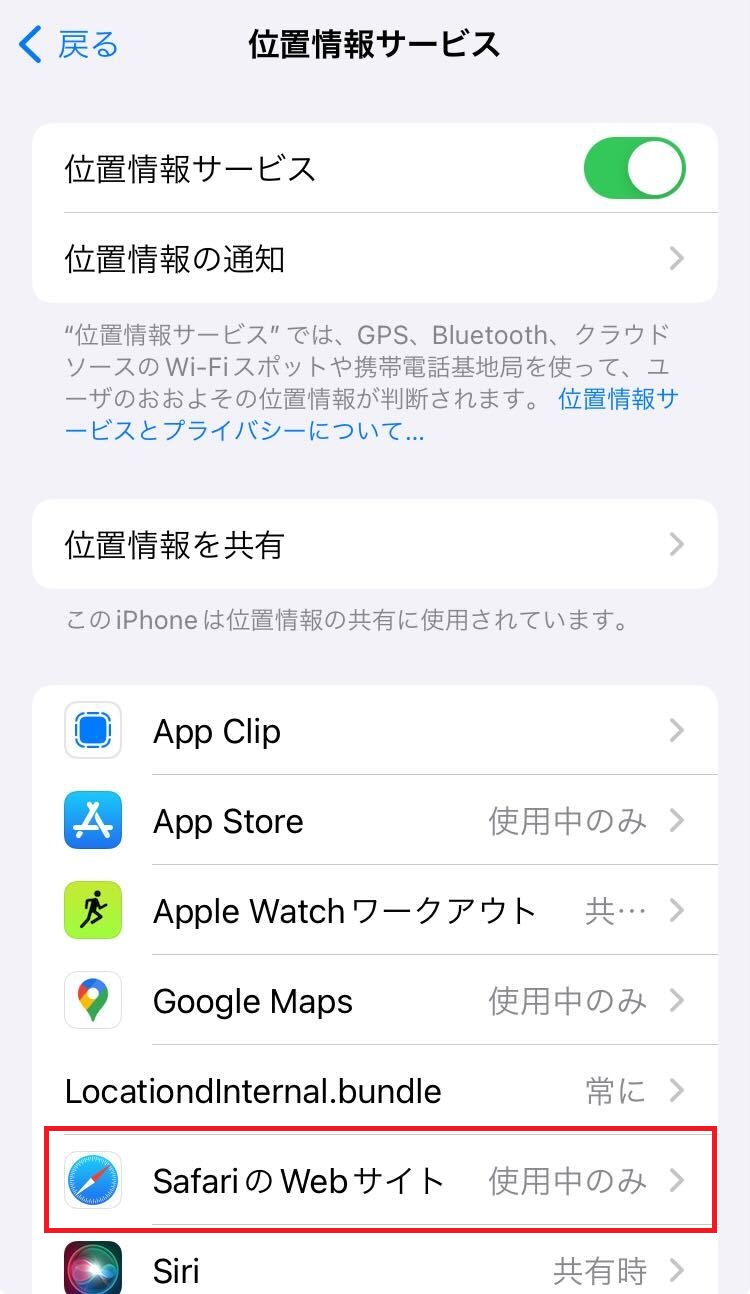
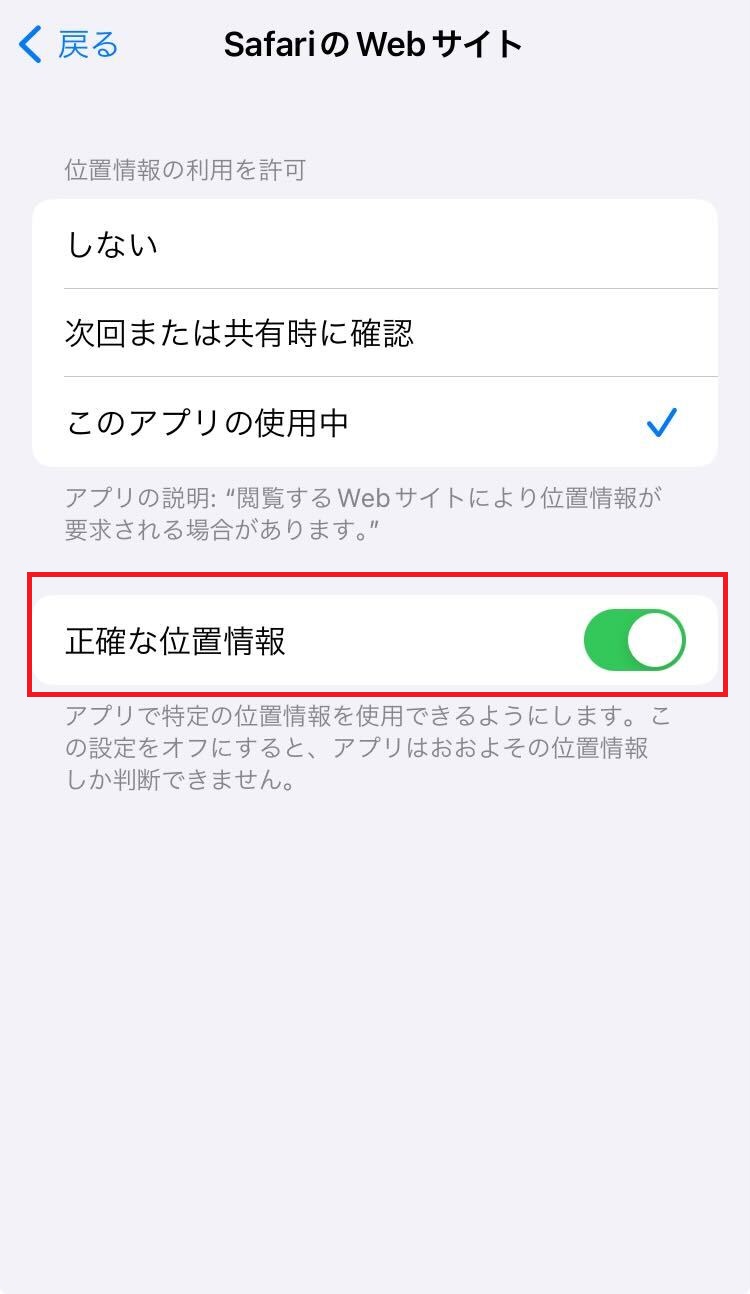
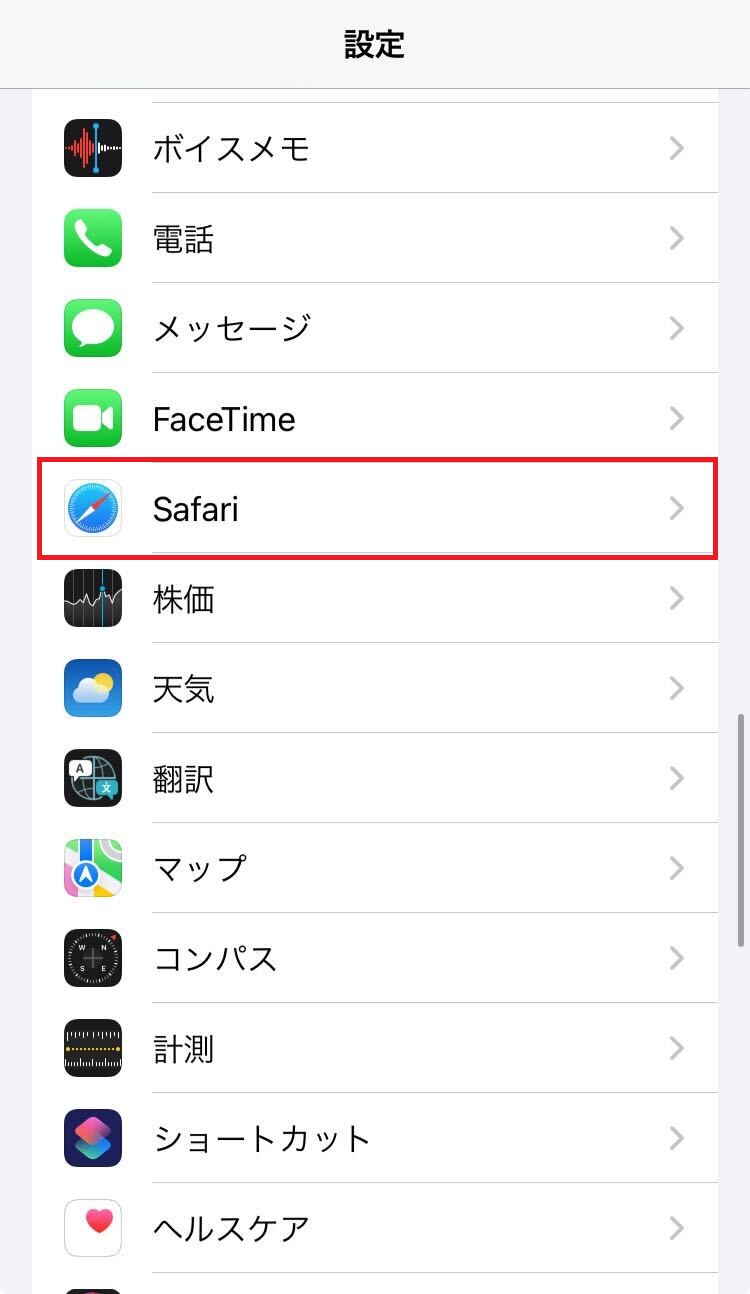
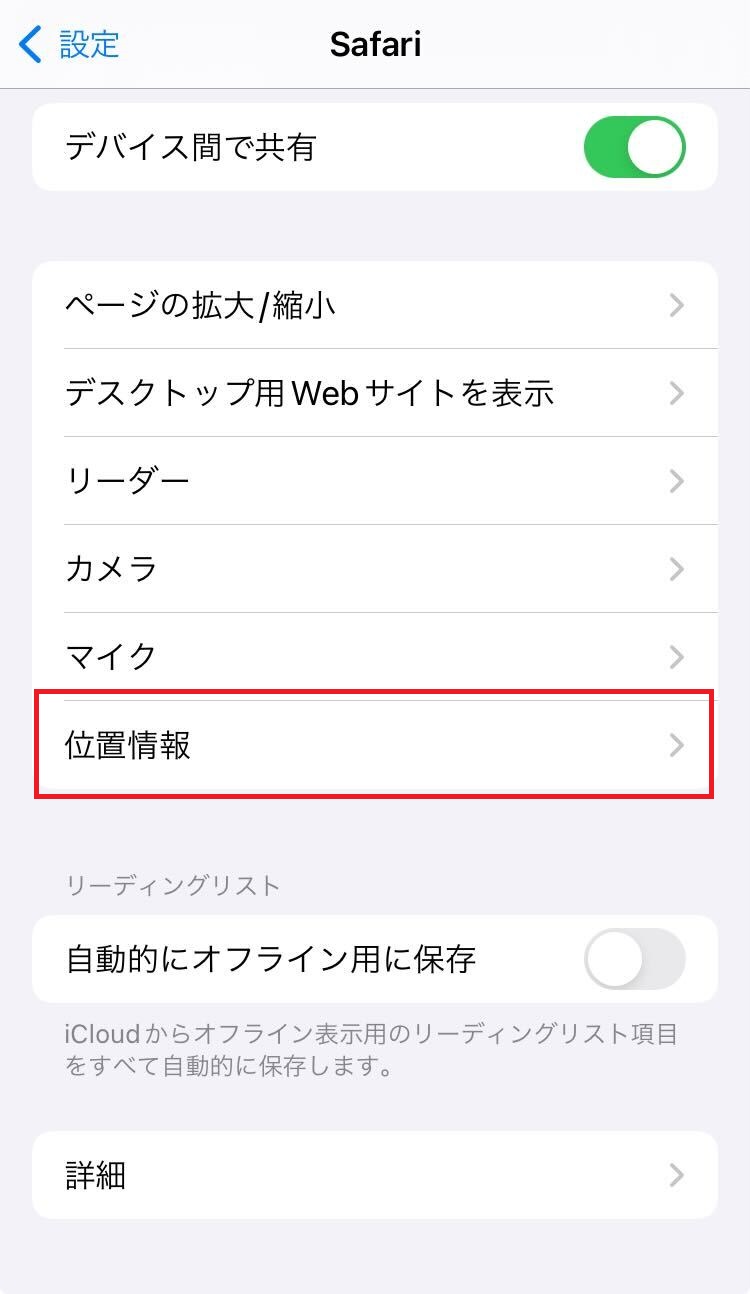
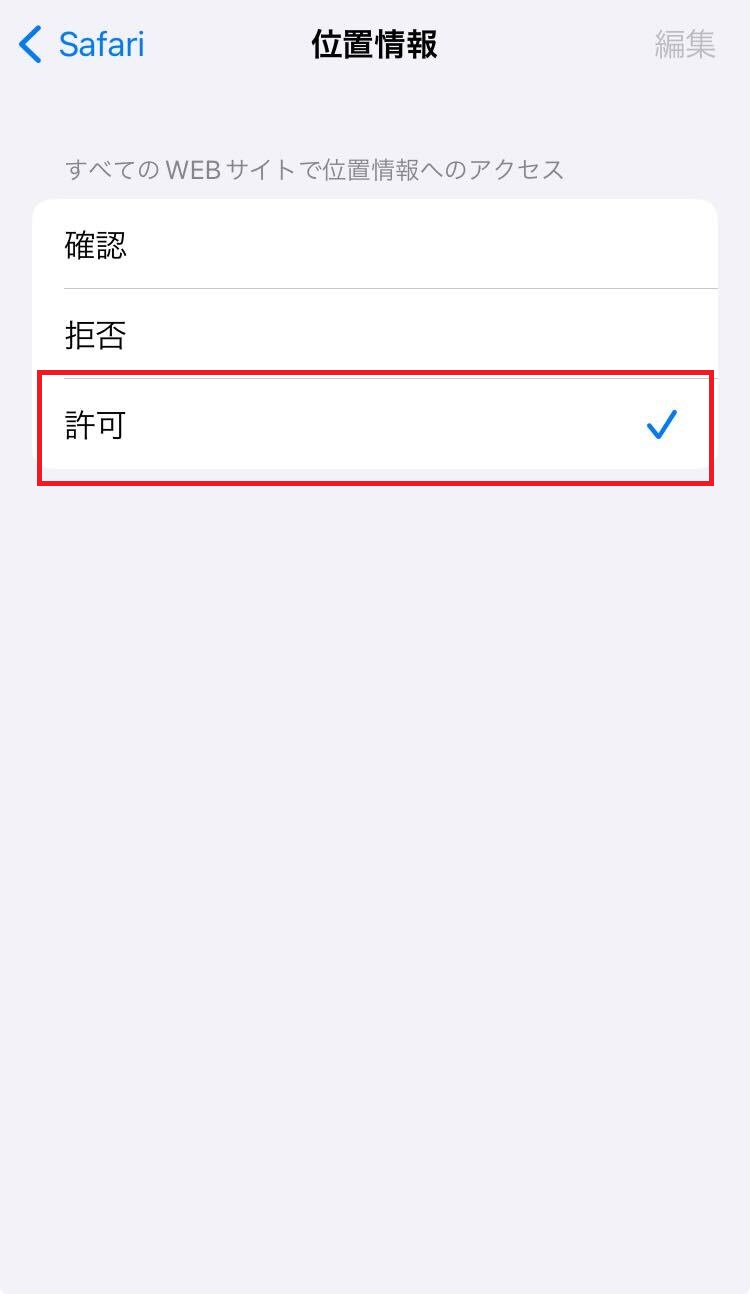
位置情報の設定方法
iPhoneの方
手順1 (画像を右にスワイプしてください)
- ※[位置情報サービス]内に[Safari/Google Chrome]のアイコンがでない方は、ブラウザ上で「"Safari"の使用中に位置情報の利用を許可しますか?」という表示が出ますので、それを「許可」してください。
-
手順2 (画像を右にスワイプしてください)
-
Androidの方
手順1
Android端末では、必ず「設定」画面からアクセスしてGPSをオンにしてください。ブラウザ上だけでは、設定が完了していない場合が多くございます。
- 1.[設定]→[位置情報とセキュリティ]にアクセス
- 2.[GPS機能をONにする]チェックボックスを[オン]に
- 3.ブラウザをたちあげ、MENUキー→[設定]にアクセス
- 4.[プライバシーとセキュリティ]→[位置情報を有効にする]チェックボックスを[オン]に
- ※端末によって項目名や手順は異なります。
- ※「セキュリティとプライバシー」では位置情報ONになっているのにチェックインできない方は、【設定>Chrome>位置情報>許可、アプリ使用中のみ】になっているか確認してください。
- ※QRコードリーダーのアプリを使って読み取る方は、必ずアプリ内のメニューからブラウザで開き直してくじを引いてください。
-
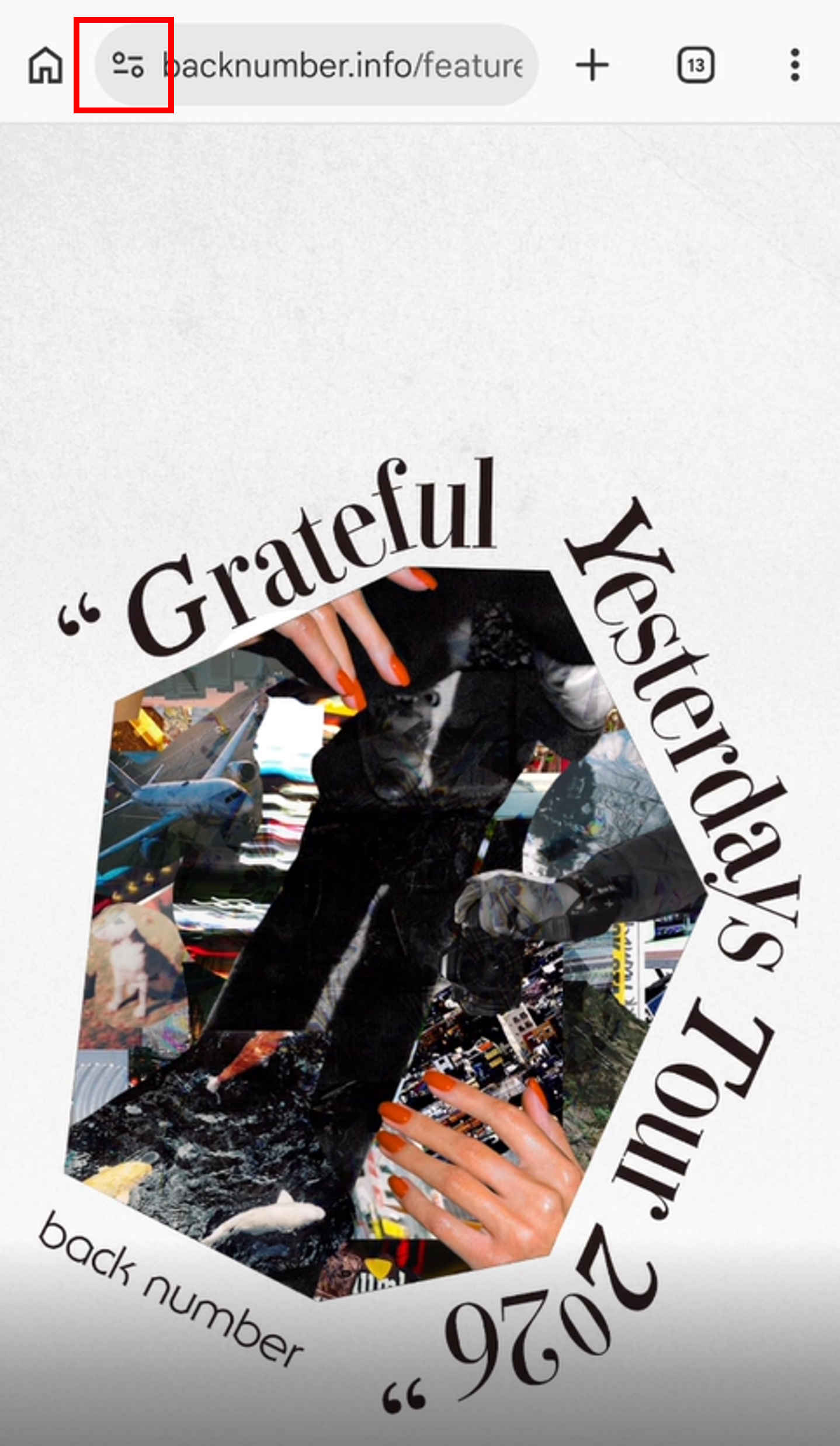
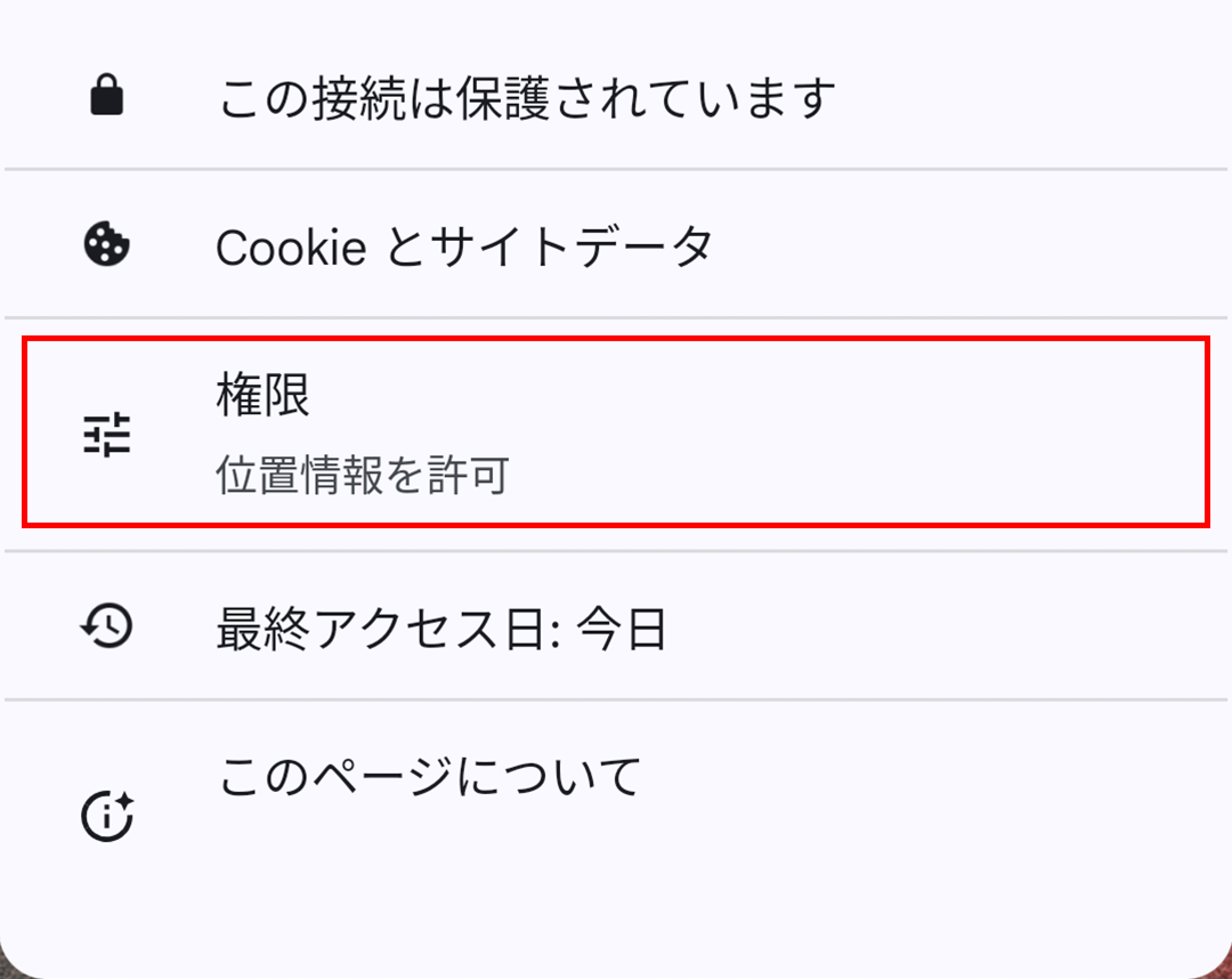
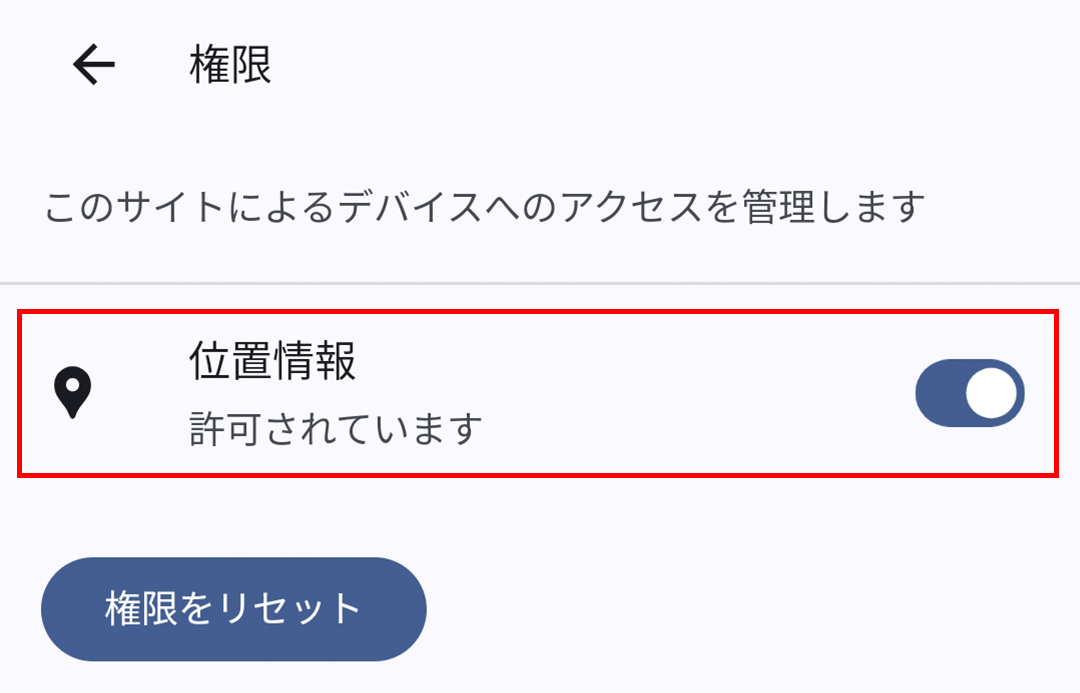
手順2 (画像を右にスワイプしてください)